iFrame
Source: https://www.iframe-generator.com/

Source: https://www.iframe-generator.com/
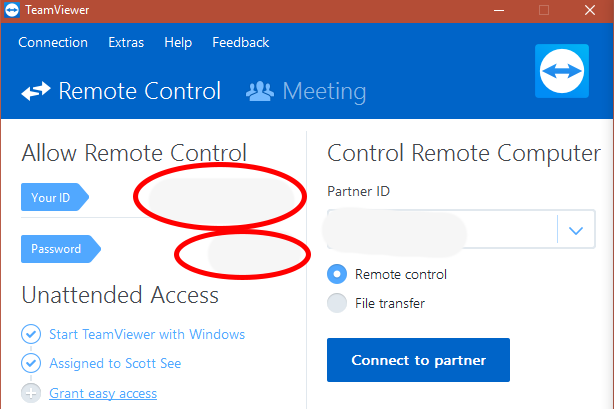
Download TeamViewer Visit TeamViewer.com and download TeamViewer https://www.teamviewer.com/en/ Install TeamViewer Be sure to do the basic installation for personal use. Click to see fullsized. Using TeamViewer Launch TeamViewer and then be prepared to tell me Your ID and Password so we can connect. [...]
Go to https://themeforest.net/item/avada-responsive-multipurpose-theme/2833226?ref=ThemeFusion Sign in (upper right-hand corner) Hover over your signin name and go to Downloads Download License certificate & purchase code (text) Hover over your signin name and go to Settings API keys (to the left) Create an API Key (Any label will do) You'll want to enter your signin [...]
Here's a slideshow on how to retrieve email using Gmail. Mind you, you don't need to use your Gmail email address. You're just using Gmail to pick up your email that's based on your domain name. Gmail does an excellent job of filtering spam, it provides huge amounts of [...]
Please use this page to send files that are too big to email. Alternatively, you can upload files to www.dropbox.com or Google Drive or one of the many other file sharing sites out there. If a form doesn't appear below, please use this link. https://www.sendthisfile.com/f.jsp?id=EJkiN2u3o3U1A56Y6TEA8zqW The password is Secured [...]
How did I do my slider (slideshow) on my homepage? This is how: […]
You can install WordPress from your cPanel in about one minute. Two minutes if you’re really groggy. […]
Click on Pages (or Posts, it's the same procedure) > Click on the checkbox besides Title > In the Bulk Actions dropdown select Edit > Apply > in Comments select Do Not Allow > Update Then, Settings > Discussion > Uncheck Allow people to post comments on new articles
All else equal, it’s better to have your keywords or keyphrases (the words people type into Google to find what you’re selling) in your domain name. To find out what people are searching for, don’t make any assumptions, but rather use the free Google Keyword Tool. Here’s how: [...]
TeamViewer is free software that allows me to provide tech support by taking over control of your computer remotely. To begin, download these Installation Instructions